User guide
From installing to your first equation in Word, in under a minute.
Add the browser extension
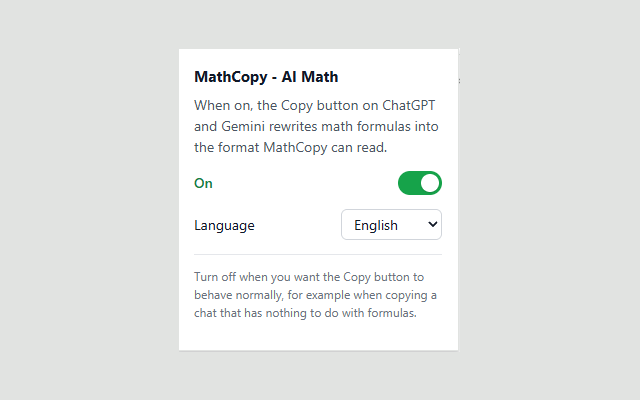
For Chrome or Edge: copies formulas from ChatGPT and Gemini more accurately, right at the copy step. Install it once.
Download and install MathCopy for Windows
Start MathCopy so it's ready to copy equations from AI.
Copy equations from an AI site
Copy the whole answer from ChatGPT, Gemini or Claude. No need to edit anything.
$x = \frac{1}{2}$Paste into Word with Ctrl + Alt + V
Put the cursor in Word and press the shortcut: the equation becomes MathType right away.
Check the result
The whole text, formulas included, has been copied from AI into Word successfully.
Video walkthrough of MathCopy
Troubleshooting
MathCopy doesn't pick up the Word window
Open Word first, put the cursor in the document and try again.
Pasted equations are missing or have wrong symbols
Use the “Copy prompt” button to have the AI rewrite the equation properly.
Ctrl + Alt + V doesn't respond
Check that MathCopy is running in the system tray.
Ran out of PDF pages mid-way
Buy a PDF Pack on the Pricing page; the pages are added to your active PDF plan right away.